
Rajesh’s Challenge: Scaling a Growing Retail Business

Rajesh Mehta, owner of Mehta Gifts & Stationery, started with a small local shop. Initially, customer details, sales, and feedback were recorded manually in notebooks. But as his business grew from 20 to 500 customers and 50 to 200 products, managing sales and loyalty data became overwhelming. Rajesh needed a digital system that could simplify data management. That’s when he partnered with Rohan, a Business Central AL developer, to implement Microsoft Dynamics 365 Business Central.
1. Tables in Business Central — Digital Notebooks for Data
A table is like a digital notebook on your computer.
- Rows represent individual records (one customer or one sale)
- Columns represent details about that record (name, date, amount, etc.)
Rohan began by creating a Customer Feedback Table to help Rajesh store and track customer reviews easily.
table 50100 "Customer Feedback"
{
    DataClassification = ToBeClassified;
    fields
    {
        field(1; "Feedback ID"; Integer)
        {
            AutoIncrement = true;
        }
        field(2; "Customer Name"; Text[100]) { }
        field(3; "Feedback Date"; Date) { }
        field(4; "Comments"; Text[250]) { }
        field(5; "Rating"; Integer) { }
    }
    keys
    {
        key(PK; "Feedback ID") { Clustered = true; }
    }
}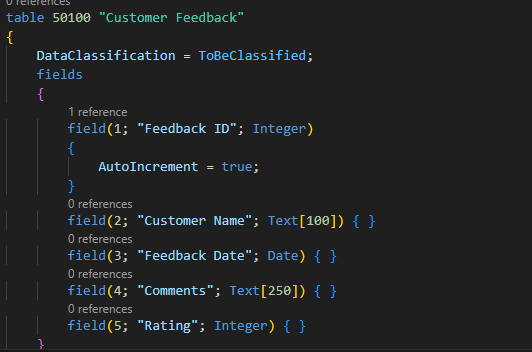
This table allowed Rajesh and Rohan to store, search, and sort customer feedback easily.
2. Table Extensions — Expanding Business Central Safely
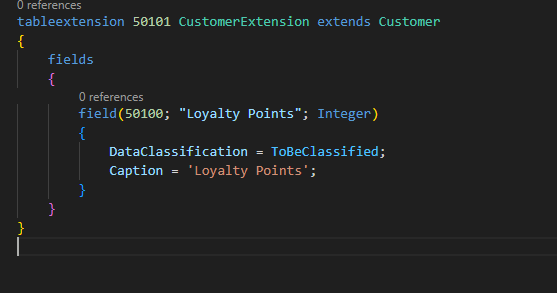
Later, Rajesh wanted to add loyalty tracking for repeat customers. Instead of modifying the core Business Central Customer table, Rohan used a table extension to add the new field securely.
Example: Adding Loyalty Points
Rohan added a new field without touching the original table:
tableextension 50101 CustomerExtension extends Customer
{
    fields
    {
        field(50100; "Loyalty Points"; Integer)
        {
            DataClassification = ToBeClassified;
            Caption = 'Loyalty Points';
        }
    }
}
Now, every customer had a Loyalty Points column added safely.
3. Triggers — Automating Business Logic
Rajesh wanted an automatic alert whenever a VIP customer was updated.
Triggers are rules that automatically run when records are added, modified, or deleted.
Rohan introduced triggers that automatically notify Rajesh whenever a VIP customer record is modified.
tableextension 50102 CustomerExtension2 extends Customer
{
    fields
    {
        field(50101; "VIP Customer"; Boolean) { }
    }
    trigger OnModify()
    begin
        if "VIP Customer" then
            Message('This customer is VIP!');
    end;
}
This trigger ensured Rajesh was notified automatically about VIP customers.
Beginner Tips
- Use unique IDs for custom tables and fields (50000+ range)
- Use descriptive field names
- Prefer Table Extensions over modifying standard tables
- Keep triggers simple for better performance
- Classify data properly
Business Before and After Business Central
| Before | After |
| Paper notebooks | Digital tables |
| Missing loyalty points | Table Extensions |
| Manual VIP check | Trigger automation |
| Slow search | Fast search and sorting |
The Result: Data-Driven Decisions and Happier Customers
With Business Central AL customization, Rajesh’s store now runs smoothly and efficiently. He can focus on customers instead of paperwork — while Rohan continues to refine his AL skills with real-world impact.
Next in the series → How Rohan and Rajesh turn Business Central data into smart reports and dashboards