
Are you spending more time clicking through menus and navigating screens than actually getting work done? You’re not alone. Microsoft Dynamics 365 Business Central is packed with powerful features designed to streamline your daily tasks, but many users never discover them. The result? Hours wasted on repetitive actions that could be completed in seconds.
In this guide, we’ll reveal the hidden gems and overlooked features that can transform your Business Central experience from frustrating to effortless. Whether you’re new to the platform or a seasoned user, these time-saving tips will help you work smarter, not harder.
1. Focus Mode: Maximize Your Screen Real Estate
When working with document lines, do you find yourself constantly scrolling because you can’t see enough information at once? Focus Mode is your solution.
What it does: Focus Mode maximizes the line items section of your document pages, giving you more space to view and edit data without distractions.
How to activate it:
- Click the Focus Mode icon in the top right corner next to the autosave indicator
- Or use the keyboard shortcut: Ctrl+Shift+F12
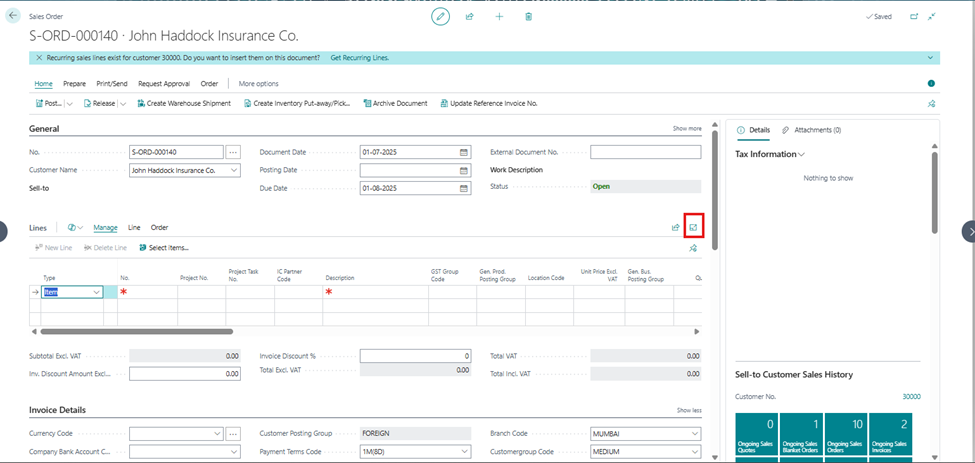
This simple toggle can dramatically improve your visibility when working with sales orders, purchase orders, or any document with multiple line items.
2. Built-in Calculator: Do Math on the Fly
Stop reaching for your calculator or phone when entering quantities. Business Central has a calculator built right into numeric fields.
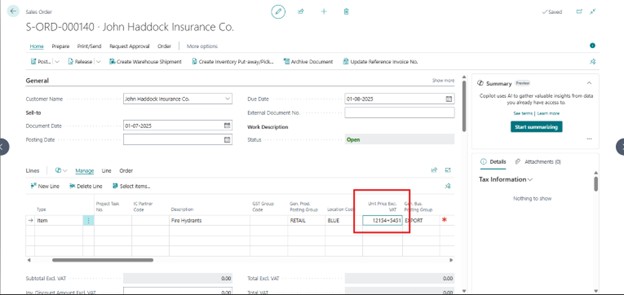
What it does: Enter formulas directly into any numeric field, and Business Central will calculate the result automatically.
Example: Instead of calculating 19+19 yourself, just type 19+19 in the field and it will automatically show 38.
This works for addition, subtraction, multiplication, and division, making quick calculations seamless.
3. Smart Date Entry with “W” and “T”
Entering dates doesn’t have to mean clicking through a calendar or typing out the full date format.
Shortcuts you should know:
- w = Work date
- t = Today’s date
- tu = Tuesday (or any day abbreviation)
- P1 = First accounting period
Advanced date calculations: You can also use expressions to add or subtract time periods. For example, typing -1Y gives you a date from one year ago.
Important note: Date and time formats depend on your regional settings. For example, 1210 means December 10th in the United States but October 12th in Europe.
4. Autosaving: Never Lose Your Work
Unlike many legacy systems, Business Central automatically saves your data as you work.
What you need to know:
- The autosave indicator in the top right corner shows your save status
- If something goes wrong, you’ll see “not saved” in the indicator
- No need to remember to click “Save” constantly
This feature works silently in the background, but it’s worth checking the indicator occasionally to ensure your changes are being saved.
5. Powerful Filtering: Find Exactly What You Need
Business Central’s filtering capabilities go far beyond basic search. Understanding filter characters can help you locate data instantly.
Key Filter Characters:
Interval (..)
- 22..24 finds dates from the 22nd to the 24th of the current month
- P8.. finds information for accounting period 8 and thereafter
Either/Or (|)
- 1200|1300 finds numbers with either 1200 or 1300
- 5599|8100..8490 combines exact matches with ranges
Not Equal To (<>)
- <>0 finds all numbers except 0
Case-Insensitive (@)
- @man finds “man”, “Man”, “MAN”, etc.
Wildcard Characters: –
- *Co* finds any text containing “Co” (case-sensitive)
- Hans?n finds “Hansen” or “Hanson” (one unknown character)
Exact Match (’’)
- ‘man’ finds only the exact text “man”
Filter vs. Search: Know the Difference
- Search (F3): Looks only at visible columns and is not case-sensitive
- Filtering (Shift+F3): Looks at all fields and is case-sensitive
Pro tip: Save your frequently used filters as views. These can include complex expressions and ranges, and they’ll be available whenever you need them.
Essential Filter Shortcuts:
- Shift+F3 = Toggle filter pane (focus on data filters)
- Alt+F3 = Filter on selected cell value
- Shift+Alt+F3 = Add filter on selected field
- Ctrl+Alt+Shift+F3 = Reset all filters
- Ctrl+Enter = Return focus from filter pane to list
6. Keyboard Shortcuts: Your Efficiency Multiplier
Memorizing even a handful of keyboard shortcuts can save you countless hours. Here are the most valuable ones:
General Navigation:
- Alt+Q = Open “Tell Me” feature (quick search for any function)
- F5 = Refresh data
- Alt+N = Create a new record
- Alt+Shift+N = Close current record and create a new one
- Alt+Shift+W = Pop out a page to a separate window
Working with Data:
- F8 = Copy from the cell above
- Ctrl+Insert = Insert a new line in documents
- Ctrl+Delete = Delete a line in documents, journals, and worksheets
- Alt+F7 = Sort column in ascending/descending order
Page Navigation:
- F6 = Move to next FastTab or part
- Shift+F6 = Move to previous FastTab or part
- Alt+F2 = Toggle FactBox area
- Ctrl+F12 = Switch between slim/wide page view
Help and Tools:
- Ctrl+F1 = Open Business Central Help
- Alt+T = Access My Settings
- Ctrl+Alt+F1 = Inspect page and data
- Alt+O = Add a note to the selected record
7. Tell Me Feature: Your Personal Assistant
Can’t remember where a specific function is located? The Tell Me feature is like having a search engine built into Business Central.
How to use it:
- Press Alt+Q to open Tell Me
- Type what you’re looking for (e.g., “customer list”, “post invoice”)
- Select from the results to navigate directly to that page or action
This eliminates the need to memorize menu structures and can help you discover features you didn’t know existed.
8. FactBox: Contextual Information at Your Fingertips
The FactBox area provides relevant information about the record you’re currently viewing without having to navigate away from your page.
Quick actions:
- Alt+F2 = Toggle the FactBox on and off
- Alt+F6 = Collapse or expand the current field group in the FactBox
Use the FactBox to quickly view customer balances, inventory levels, or related documents while working on your current task.
9. Role Explorer: Discover What You Can Do
Business Central tailors the experience based on user roles, but you might not be aware of everything available to you.
How to explore:
- Press Shift+F12 to open the Role Explorer
- Browse through all the features and pages available for your role
- Discover functions you didn’t know you had access to
10. Start Small, Build Momentum
You don’t need to memorize every tip in this guide overnight. Start by implementing just two or three features that address your biggest pain points. As these become second nature, gradually add more to your repertoire.
The most successful Business Central users aren’t necessarily the ones who know every feature; they’re the ones who consistently use the right tools for their daily tasks. By incorporating these time-saving features into your workflow, you’ll find yourself working faster, with less frustration, and with more time to focus on what really matters.
11. Your Next Steps
- Pick one or two shortcuts from this list to try today
- Set up Quick Entry for your most common data entry tasks
- Experiment with filtering to find information faster
- Share these tips with your team to multiply the efficiency gains
Ready to take your Business Central skills to the next level? These features are just the beginning. The more you explore and experiment, the more efficient you’ll become.