
Launched in 2025 Release Wave 1 (Update 26.0)
- When you create a new record or edit an existing record, Copilot suggests values for some of the editable fields on the page.
- Autofill works for fields in card and document pages, such as Customers, Sales Orders, and Items. It doesn’t work for rows or columns. You can use Autofill on your own custom pages.
- Suggestions come from your company data. They might be based on recently used values, frequently used values, or intelligent selections from a choice of values in a lookup or option field. Depending on the field and context, suggestions can also be AI-generated.
- Copilot just suggests the value. You get the chance to review where the suggestion comes from. You stay in control and decide whether to apply the value, discard it, or replace it.
To try this feature, make sure about prerequisite copilot set up is active.
- Click on global search >>Copilot & agent capabilities >> Check the “Autofill” is activate or not.

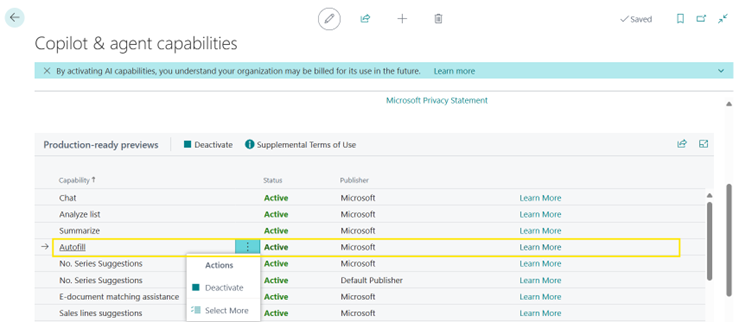
Let’s see how it works: (Autofill works for fields in card and document pages, It doesn’t work for rows or columns).
Go on Vendor card and let’s create a Vendor with the Autofill suggestions. First select the Vendor No. From No. series , then click on Vendor “Name” field text box where at the end corner of the Box you can see one Copilot Icon ✨ When you click on this Icon you can see the “Working on it” copilot message in that field.

Once the AI generated copilot search become complete, then Some autofill field data will be suggested by Copilot on your card page section
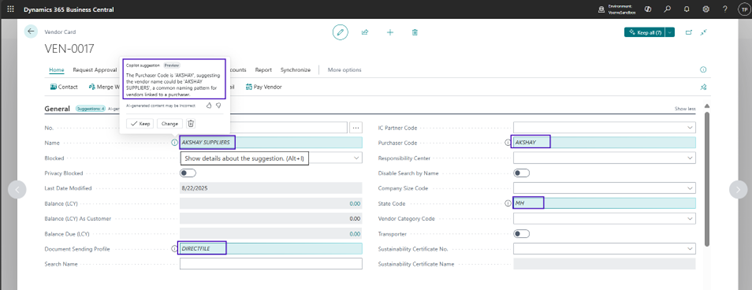
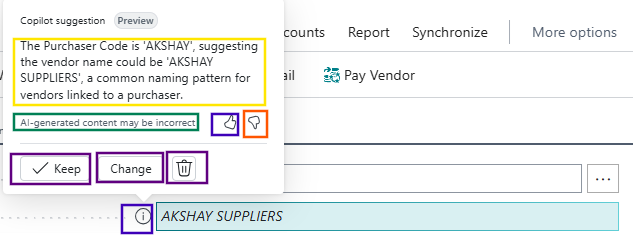
After suggesting the “Autofill” data, if you click detail icon then you can see the Message from copilot which give us the clarification on what basis Copilot has suggested the Autofill. User can keep, change or delete the suggested data.
What we used “Autofill” for the “General” section on Vendor card. In this way you can use it for other Sections also “ Address & Contacts, Invoicing, etc”
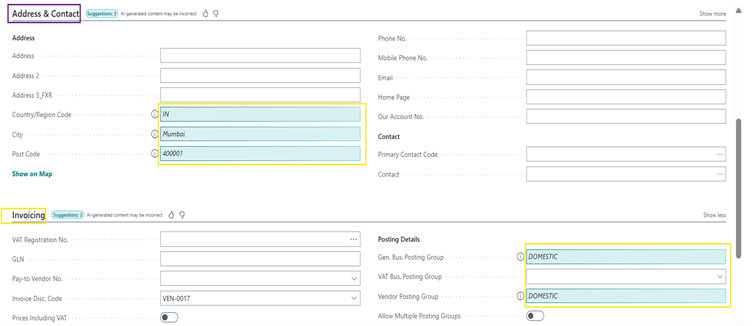
Finally after using “Autofill” for all the sections on Vendor card then you wish to see the suggested changes collectively & if you want the choice to “Keep or Discard all” then “Go on Top right corner of the card page” You can see the “Keep all (No. of Autofill suggestions)”
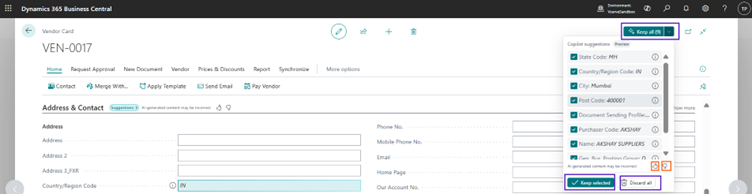
If you don’t want to keep any suggested field data then you can “Uncheck” the check mark in front from that field. If you are okay with the suggested changes then you can click on “Keep Selected”.
Note: On every copilot autofill suggestion in detail message there are “Like & Dislike Icons. If you like it, then copilot will suggest you the same way & If you dislike it in next attempt copilot will do the more back end or earlier inputted data analysis and suggest you the more relevant data.