
If you use Microsoft Dynamics 365 Business Central to manage your business, there will likely come a point where you need to create a new company inside the system. Maybe your business is growing, and you are opening a new branch. Maybe you have acquired a second entity that needs its own set of books. Or maybe you just want to test a new process without touching your live data. Whatever the reason, Business Central has you covered.
When you go to create a new company, you are presented with three different starting options; and choosing the wrong one can mean extra cleanup work later. This blog post walks you through each option in plain, everyday language so you can make the right call from the start. We will also cover a few related things you should know, like what a company actually is, how environments work, what happens when you copy a company, and what the trial limits look like.
No technical jargon. No confusing acronyms. Just a straightforward guide to help you get set up and moving.
First Things First: What Is a “Company” in Business Central?
Before we talk about the three options, it helps to understand what Business Central actually means when it says “company.”
In everyday life, the word company usually means a business. In Business Central, it means something slightly more specific; a container that holds all the data for one legal entity or business unit. Think of it like a separate filing cabinet. Every invoice, every customer record, every transaction, every bank account setting; all of it sits inside that company and is completely separate from any other company you might have in the system.
This separation is exactly what makes it so useful. If you run two businesses under the same umbrella, or if you have regional operations that need to be tracked independently, you give each one its own company. They do not interfere with each other. You can switch between them easily through your settings, and your data stays clean and organised.
A real-world example: imagine a retail group that has one business unit handling operations in Mumbai and another handling operations in Pune. Even though both units use the same Business Central account, they each have their own company so that their finances, inventory, and customer data remain completely separate.
One important access note before we move on: only users who have been assigned the Super permission set can create a new company. If you try to do it and find you do not have the option, you will need to contact your system administrator to either grant you the right access or create the company on your behalf.
How to Get to the Company Creation Page
Creating a new company in Business Central is straightforward once you know where to look. You can get to the setup guide in two ways.
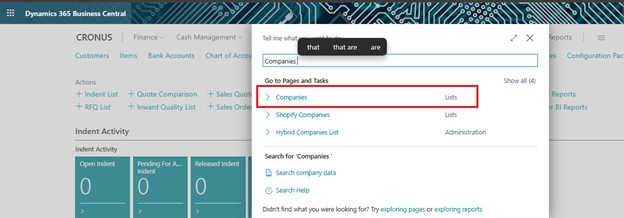
The first way is through the Companies page. You can search for it using the search bar at the top of Business Central; just type “Companies” and it will come up. From there, you will see a list of all existing companies in your environment, and there will be an option to create a new one.
The second way is through My Settings. Click on the company name shown in the top-right area of Business Central, then go to My Settings. You will see the Company field there, and from the dropdown you can access the option to create a new company.
Either way, you will be taken into the Create New Company assisted setup guide, which walks you through the process step by step. The guide is short and easy to follow. The most important decision you make in it is which template to start from; and that is exactly what we are about to cover.

The 3 Starting Options Explained
When you reach the template selection screen in the setup guide, you will see three choices. Here is what each one means and who it is best suited for.
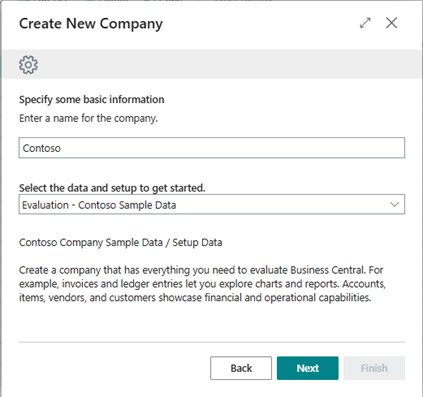
1. Evaluation: Sample Data
This option creates a company that already has data in it; but none of it is real. It is all fictional sample data: made-up customers, pretend products, dummy transactions. The idea is to give you a fully working environment you can explore without any risk.
When you log into this company, everything looks like a functioning business is already up and running. You can click through sales orders, look at the chart of accounts, browse customer records, and see how reports work; all without entering a single piece of your own information.
This is the best option if you are new to Business Central and still figuring out how it works. It is also great for training purposes. If you are a manager onboarding new staff, or a consultant demonstrating the product to a client, this gives everyone a safe sandbox to learn in without the risk of accidentally changing or deleting something important.
One big advantage of this option: it does not require a 30-day trial period. You can create it and use it freely without it counting against any subscription or trial limits. That makes it a low-commitment way to get familiar with the system.
2. Production: Setup Data Only
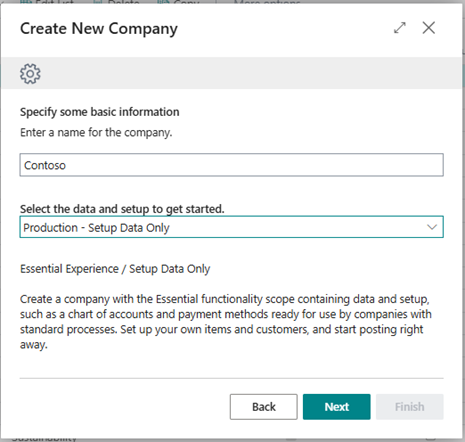
This is where things start to feel more serious. This option creates a company that is genuinely meant for real business use. It does not have any sample data in it, so you will not find fictional customers or made-up invoices cluttering things up. But it is not completely empty either.
What it does come with is the structural foundation your business needs to get started: a chart of accounts, payment methods, financial report definitions, and other baseline configuration. Think of it as a house that has been built; the walls are up, the plumbing is in, the wiring is done; but you have not moved your furniture in yet.
Your job after choosing this option is to bring in your actual business data. That might mean importing a list of customers and vendors from a spreadsheet, setting up your products and pricing, entering your opening balances, and connecting your bank account. Business Central has tools to help you do all of this, including an import wizard and a Company Setup guide that walks you through the essentials.
This is the most commonly chosen option for businesses that have made the decision to go live on Business Central and are ready to get started properly. It saves you the time of having to configure all the basic settings from scratch while still giving you a clean slate for your own data.
One thing to be aware of: if you are on a 30-day trial, creating this type of company will use that trial period. The clock starts ticking once you create it.
3. Create New: No Data
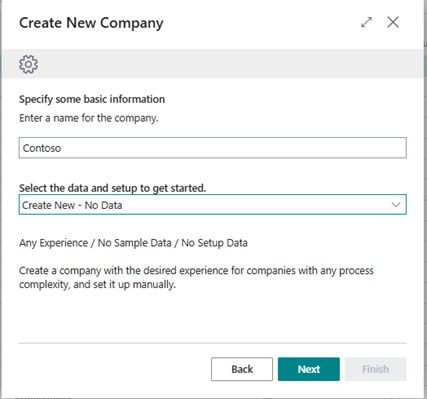
This is the blank slate option. When you choose this, Business Central creates a company with absolutely nothing in it; no configuration, no chart of accounts, no payment methods, no sample data. You are starting from zero.
That might sound daunting, but for certain people it is exactly what they want. Experienced Business Central consultants or administrators who have strong opinions about how they want to set up a system often prefer this route because it gives them complete control. There is no pre-existing configuration to undo or work around. Every single setting is your decision.
This option is also useful in specific technical scenarios; for example, when building a custom implementation for a client with highly specific requirements, or when migrating a very unique business setup from another system that does not fit neatly into any of the standard templates.
For most regular business users though, this option is more work than it is worth. You would need to set up the chart of accounts, configure tax settings, define payment terms, and handle dozens of other settings before the company is usable. Unless you have a clear reason to go this route, Production; Setup Data Only will serve you better.
What Happens Right After You Create a Company
One thing worth knowing: creating a new company is not instant. Once you finish the setup guide, Business Central needs a few minutes to get everything ready behind the scenes. During that time, the company will show a status on the Companies page. Once it switches to ready, you can go to My Settings, select the new company from the dropdown, and start working in it.
When you first open a new company, you will usually be greeted by the Company Setup assisted setup guide. This short guide asks you for the basics; your company name and address, your bank account details, and your inventory costing method. It is worth taking the time to fill this in properly because Business Central uses this information across the whole system. Your address will appear on invoices and other documents. Your bank details feed into payment processing. The costing method affects how inventory is valued.
Once that initial setup is done, you can start building out the rest of your configuration; setting up users, defining approval workflows, connecting integrations, importing data, and so on.
There Is Also a Forth Option: Copying an Existing Company
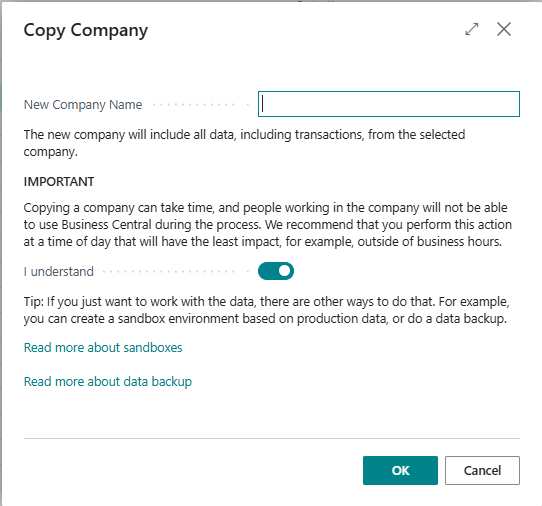
Outside of the three templates, Business Central gives you one more option on the Companies page: you can copy an existing company. This creates a new company that is a duplicate of one you already have, including all of its settings and data.
This is incredibly useful in a few situations. The most common one is testing. Say you want to try out a new workflow, a new pricing structure, or a software update before applying it to your live environment. Rather than risking your production data, you make a copy of it and run your tests there. If something goes wrong, your real data is untouched.
Another use case is when you are setting up a new business entity that is very similar to an existing one. Instead of starting from scratch or from a template, you copy the existing company and then make the specific adjustments needed for the new entity. It can save a significant amount of configuration time.
There is one important thing to understand here: copying a company is not the same as taking a backup. If your goal is to protect your data in case something goes wrong, you need to export the database as a .bacpac file. That is the proper backup method. Using the copy function for backup purposes is not recommended and does not provide the same level of protection.
Also worth noting: if the company you are copying uses an SMTP email account, the password for that account will not be carried over. You will need to re-enter it manually in the new company after the copy is complete.

Understanding Environments and Why They Matter
When you are working with companies in Business Central, you will eventually come across the word “environment.” It is worth understanding what this means because it affects how companies are organised, especially for larger businesses.
An environment is essentially the level above a company. It is the space that contains your companies. Think of it this way: an environment is the office building, and the companies are individual offices inside that building.
There are two types of environments in Business Central. A Production environment is where your real, live business data lives. A Sandbox environment is a separate space set up specifically for testing, development, and experimentation. Sandbox environments are where you try things out before they go into production; new features, customisations, integrations, and so on.
For most small and mid-sized businesses with operations in a single country, one production environment is all you need. You can have multiple companies inside it, all sharing the same environment.
However, if your business operates across multiple countries or regions, you will need separate environments for each one. This is because environments in Business Central are tied to a specific country or region, which affects things like regulatory compliance, tax rules, and localisation settings. You cannot have a UK company and an India company in the same environment; they need to be in separate environments set up for their respective regions.
This is an important consideration for growing businesses. If you are planning to expand internationally, it is worth understanding the environment structure early so you plan your setup correctly from the start.
Trial Limits: What You Need to Know
If you are currently exploring Business Central on a 30-day trial, there are a few things about company creation worth knowing so you do not get caught off guard.
During your trial, you can create as many new companies as you want. There is no limit on the number. This is useful if you want to try out multiple setups or explore different configurations side by side. However, all of those companies are only available for the duration of your trial. When the trial period ends, access to those companies ends too; unless you have moved to a paid subscription before that happens.
The Evaluation and Advanced Evaluation options are the exceptions. These do not count against your trial period and are available even without an active trial. If you just want to explore Business Central with no time pressure, starting with one of the evaluation companies is the way to go.
If you decide to move forward with Business Central after your trial, your partner or the Microsoft team can help you transition your setup into a paid subscription and ensure your data and configuration carry over properly.
Common Mistakes to Avoid
A few things people often get wrong when creating companies in Business Central:
- Choosing the wrong template. The most common mistake is picking “Create New; No Data” thinking it is the simplest, when actually it requires the most work. For most businesses going live, “Production; Setup Data Only” is the better starting point.
- Using copy as a backup. As mentioned earlier, the copy function is not a backup tool. Always export your database separately if you need a proper backup.
- Not planning for international environments. If your business spans multiple countries, sorting out your environment structure early will save you headaches down the line.
- Forgetting to re-enter email passwords after copying. If you copy a company that has email configured, the password does not come with it. Check this before trying to send any emails from the new company.
- Rushing the Company Setup guide. The setup guide that runs when you first open a new company is quick, but the information you enter matters. Take a few minutes to fill it in accurately rather than skipping through it.
Final Thoughts
Creating a new company in Business Central is one of those things that seems confusing at first but makes a lot of sense once you understand what each option is actually for. The three templates; Evaluation, Advanced Evaluation, Production, and Create New; cover pretty much every situation you are likely to encounter, from learning the system for the first time to going fully live with a real business.
The short version: if you are exploring, use one of the evaluation options. If you are ready to go live, use Production; Setup Data Only and bring in your own data. If you have very specific technical requirements and know exactly what you are doing, use Create New; No Data. And if you want to test something without risking your live data, make a copy.
Get that first decision right, and the rest of your setup will go a lot more smoothly. If you are ever unsure, it is worth having a quick conversation with your Business Central partner before diving in; a few minutes of planning at this stage can save a lot of rework later.