Introduction
The Microsoft Release v28 Wave 1 update introduces multiple enhancements across the platform. One notable improvement is the optimized text search functionality within lists. This blog focuses on that enhancement and provides a detailed explanation by analysing and contrasting its behaviour with that of earlier versions.
Older Version
In earlier versions, the list search functionality was limited and required strict compliance with specific criteria:
- The search term was required to be an exact match with the stored record.
- Records needed to be entered precisely and followed a fixed sequence to return valid results.
- Filtering had to be applied by explicitly selecting the relevant column.
For example, when searching based on the Description field in the Item Card, the complete and exact value such as “Kerafusion Keratin Treatment” had to be entered to retrieve the corresponding record.
New Updates
With the latest enhancements introduced in Microsoft Release v28 Wave 1, the text search capability has been significantly optimized:
- The search term was required to be an exact match with the stored record.
- Records needed to be entered precisely and followed a fixed sequence to return valid results.
- Filtering had to be applied by explicitly selecting the relevant column.
For example, when searching based on the Description field, entering “Kerafusion Treatment” is sufficient to retrieve the correct item record, even without the full description or exact sequence.
What Changes Were Made to the Optimized Text Search in List Views, and How Do They Benefit Users?
The optimized text search introduced in Microsoft Dynamics 365 Business Central Release v28 Wave 1 represents an advanced enhancement to the existing data filtering capabilities within list views.
Previously, the text search feature was available but operated with functional limitations. Users were required to enter search values in an exact or near‑exact sequence, which often restricted flexibility when locating records. Searches typically depended on the precise order of characters, reducing efficiency when dealing with long or complex descriptions.
With the optimized text search, the filtering mechanism has been significantly improved to support more flexible and intelligent matching. Users can now search for records using partial text derived from the beginning, middle, or end of a value. Additionally, searches can be performed using combinations of keywords without adhering to a strict sequence.
These enhancements provide several key benefits:
- Improved efficiency in locating specific records within large datasets.
- Reduced dependency on exact text matching, minimizing user effort and error.
- Enhanced usability for operational tasks that require frequent data lookups, such as searching item descriptions in list views.
Configuration
To enable and use the optimized text search functionality in Microsoft Dynamics 365 Business Central, the following configuration steps must be performed:
- Sign in to the Microsoft Dynamics 365 Business Central account.
- Navigate to the Feature Management page using the search option.
- Locate the Optimized Text Search in Lists feature and enable it.
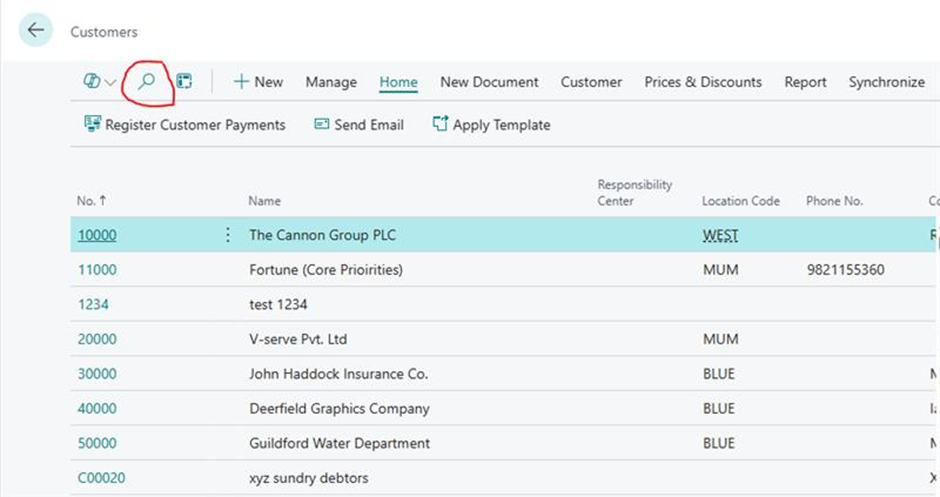
- Open list pages such as Item, Customer, or Contact, and select the drop‑down arrow next to the global search bar.
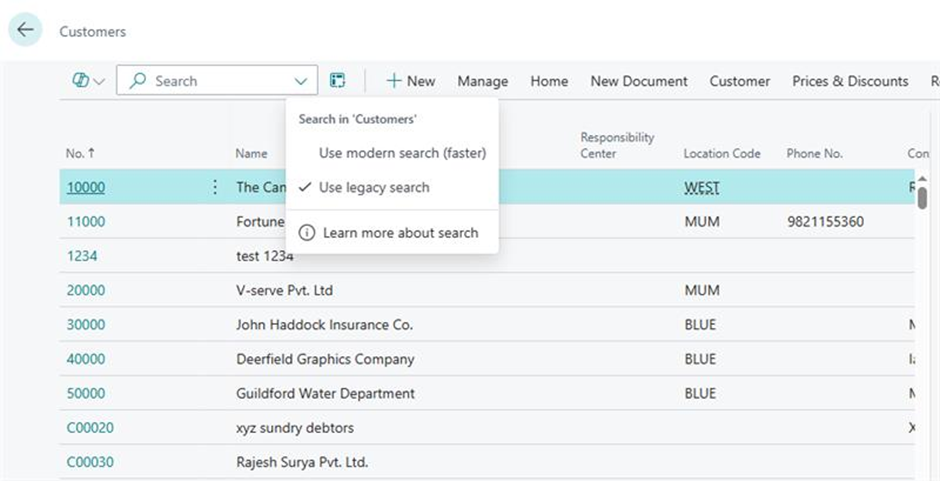
- Choose the Use Modern Search option. Once enabled, the advanced text search functionality becomes available for use.
Visual Demonstration: Legacy Search vs. Modern Search
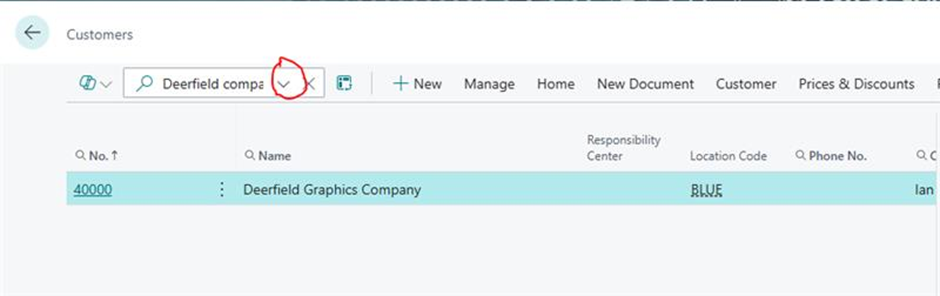
The Global Search box is accessed, and a search is performed using the value “Deerfield Graphics Company.”
Under Search Options, the default Legacy Search mode is initially selected. The option to switch to Modern Search is then evaluated.
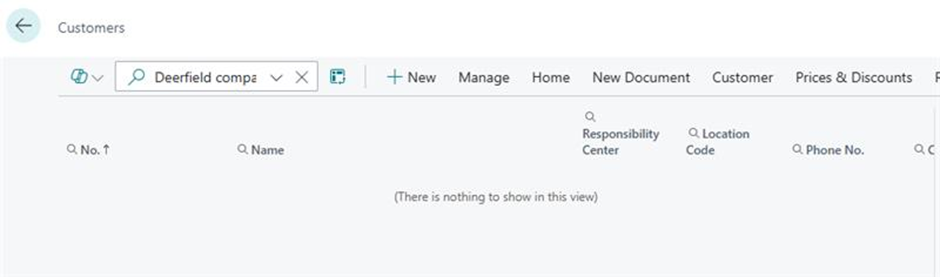
Under Legacy Search, the system processes the input “Deerfield company” and displays results based on traditional exact or sequence‑dependent matching logic.
Under Modern Search, the same input “Deerfield company” is evaluated using optimized text search logic, enabling flexible matching and improved result accuracy.