
Introduction
Microsoft has introduced a new feature in Microsoft Dynamics 365 Business Central known as Analysis Mode. This article provides a comprehensive overview of Analysis Mode and its capabilities. Previously, complex accounting analysis and data evaluation required exporting data from Business Central to Excel. With the introduction of Analysis Mode, the same analytical processes can now be performed directly within Business Central.
How Analysis Mode useful to Business Central users?
- Data analysis can be performed without exporting information to Excel.
- Data can be filtered and analysed directly within Business Central.
- The interface is like an Excel Pivot Table but provides more advanced analytical capabilities.
- Multiple Analysis Mode views can be opened and used simultaneously.
- Copilot prompts can be used to generate analysis based on specific customer sales or currency codes.
- Columns and rows can be added or adjusted based on analytical requirements.
- Custom views can be created to efficiently summarize and interpret data.
Where to use analysis Mode?
- Customer List
- Vendor List
- Item List
- Sales Order
- Posted Sales Invoices
- General Ledger Entries
How to Configure it?
To enable Analysis Mode, users should follow these steps:
- Sign in to the Business Central account.
- Navigate to any list page.
- Select the Analysis Mode icon located on the right side of the search bar.
- After clicking the icon, the page will switch to Analysis Mode.
Step-by-step demonstration with screenshots
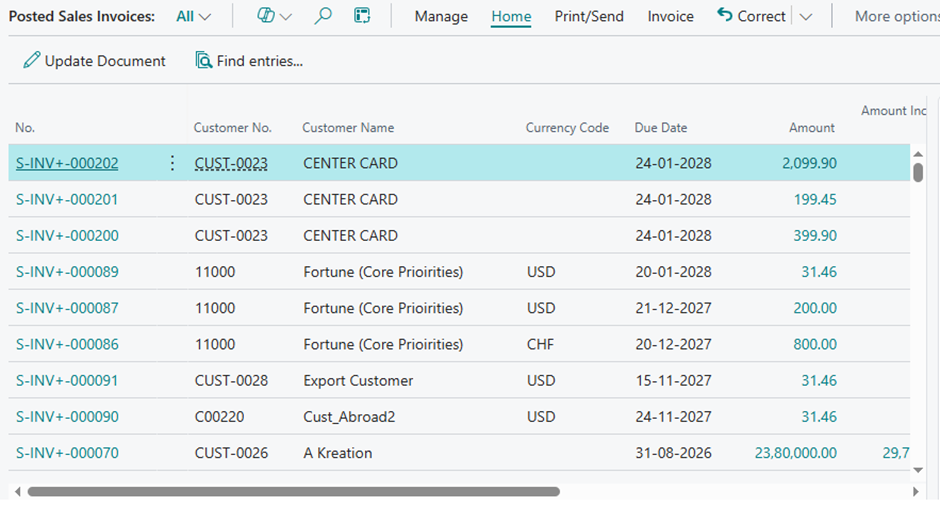
1) Open the list page as shown below.
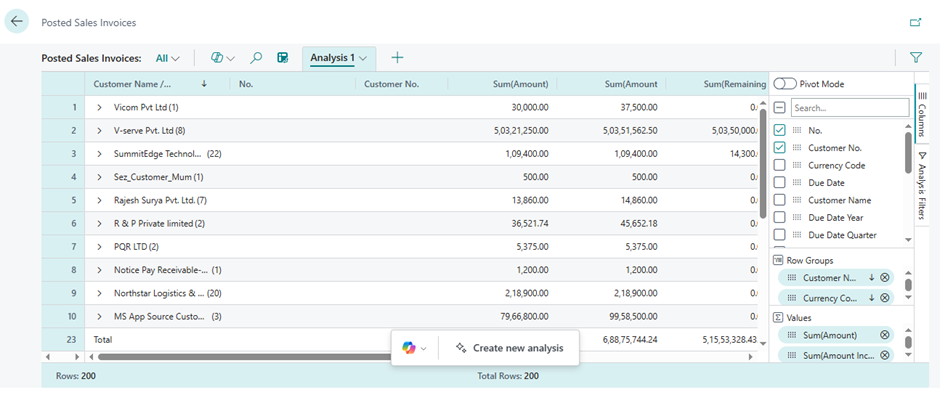
2) After selecting the Analysis Mode icon, the page transitions to Analysis Mode.
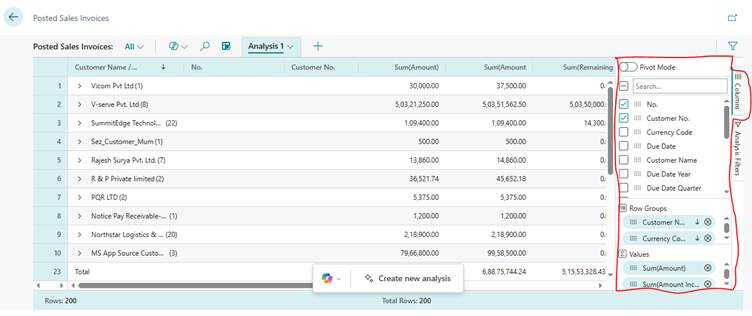
3) Columns and rows can be added or removed for analysis by checking or unchecking them.
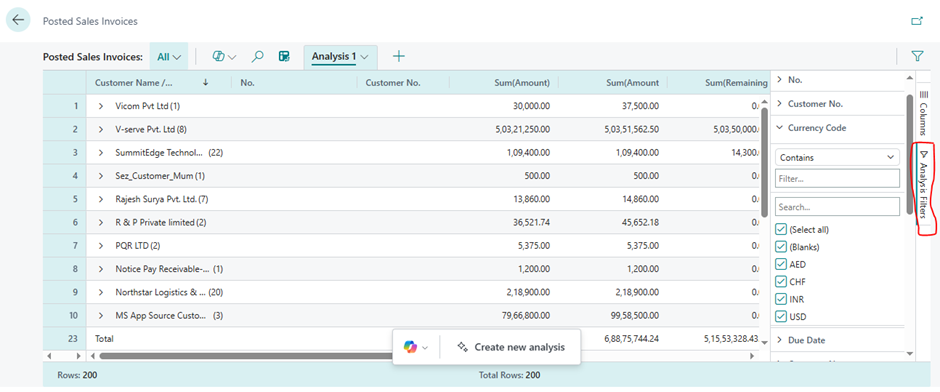
4) Filters can be applied using the Analysis Filters option to refine the data view.
Key advantages of Analysis Mode
- Eliminates the need to export data to Excel for analysis.
- Enables direct filtering and analysis within Business Central.
- Provides functionality like an Excel Pivot Table with enhanced features.
- Multiple Analysis Mode views can be opened and used simultaneously.
- Supports opening and working with multiple Analysis Mode views simultaneously.
- Allows analysis generation through Copilot prompts based on customer data or currency codes.
- Offers flexibility to add or modify columns and rows as needed.
- Enables the creation of custom analytical views with summarized data.