
Introduction
Microsoft Dynamics 365 Business Central is becoming more advanced after the introduction of Copilot. Copilot and its capabilities include multiple features. One of the new features is the Sales Order Agent. Business Central users may not be aware of it or how it works. Generally, it is used for creating sales orders through emails. In this blog, let’s explain how it works.
What is Sales Order Agent
In the introduction, we mentioned that the Sales Order Agent is used to create sales orders through emails. It looks like something interesting. Day by day, AI is playing an important role in every sector.
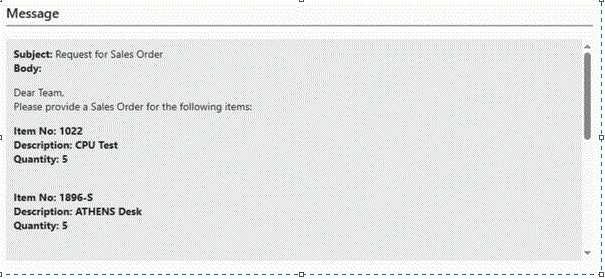
Earlier, we created sales quotes manually by feeding details into the quote. Now, clients only need to send us an email, and the Sales Order Agent is ready to read the details of the email and create the quote. You can decide the email format as you want.
Technical and Functional Pre-requisites
- A Microsoft 365 mailbox must be set up for receiving sales quote or order requests.
- Mailbox must be either user mailbox or shared mailbox with the full access.
- Business Central version 26.x or later for full compatibility.
- Copilot/AI Agent billing must be enabled because Sales Order Agent uses Copilot Credits. [learn.microsoft.com]
- Enable Sales Order Agent Capability in Business Central.
- Find the sales order agent extension in extension management page and turn on the HTTP Client Requests in the extension settings.
- Note: This agent will be available in Sass (Cloud) version.
Step-by-Step Configuration
- Decide which mailbox uses for reading the customer’s request.
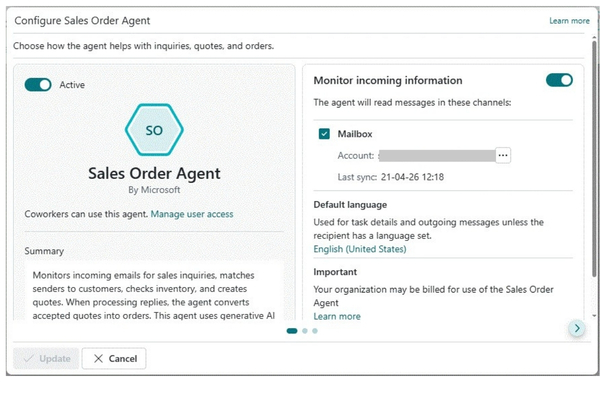
- Go to Copilot & Agent Capabilities in Business Central
- Now top navigation bar hexagonal symbol you see at right corner of page.
- Turn ON the Active toggle.
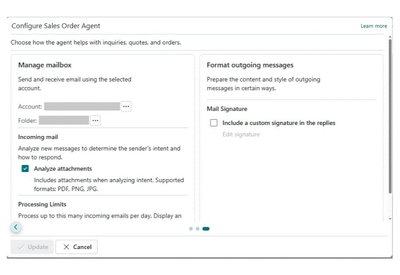
- Select the Mailbox which you want it will automatically monitor by agent for create sales quote.
- Once Mailbox attached select the folder which receive mails. (Note: Create the separate folder for SO request mails otherwise agent read all mails and credits get exhausted.)
- It consume the documents in PDF (recommended) format also if you want such case just enable the check box of analyse the attachment.
- Once quote created you gat back the confirmation mail with the document date.
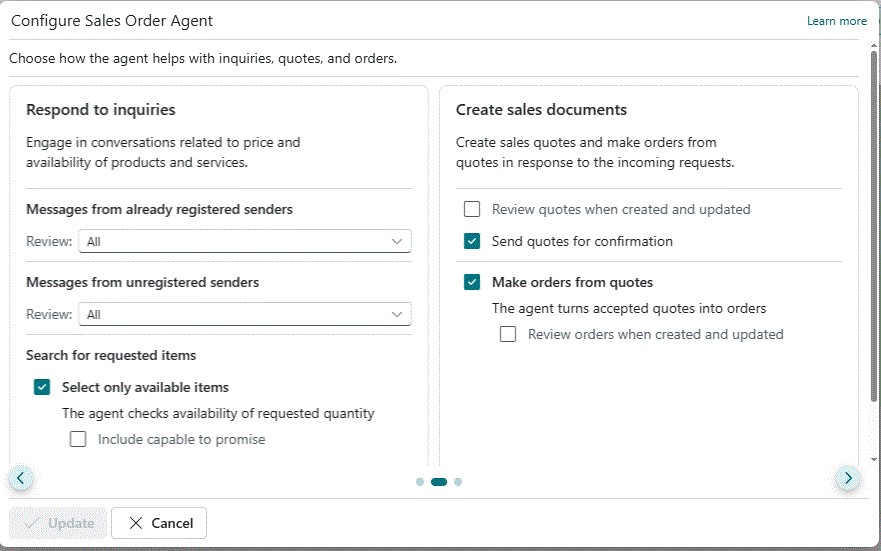
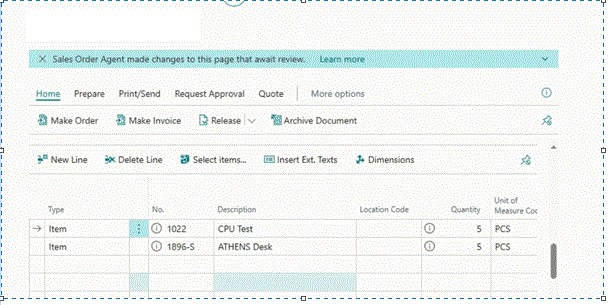
- You can check attached picture for visualization.
Complete End-to-End Flow
- Customer sends email for the request Sales Quote/Order.
- SO Agent reads/understands request.
- SO Agent check customer identification in Business central customer table.
- SO Agent will also check the Item & availability.
- Once review the mail and all details are matched then draft the quote for creation.
- Once created quote SO Agent sends quote to customer.
- Customer review the quote and confirms to convert it to make order.