
Personalization in Business Central
Every user works differently. Some prefer a clean and minimal layout, while others need quick access to detailed information. Microsoft Dynamics 365 Business Central understands this, which is why it offers personalization features that allow you to shape your workspace to fit your role, priorities, and working style.
What Is Personalization?
Personalization refers to the adjustments you make for yourself only. It doesn’t impact other users in the system. You can rearrange, hide, or show elements on a page so that your workspace feels intuitive and helps you focus on what matters most.
The best part? Personalization works in both production and sandbox environments so whether you’re actively running your business or testing configurations, you can tailor your workspace without affecting anyone else.
What You Can Personalize
Here are some of the most common ways you can personalize pages in Business Central:
- Move and Hide Fields or Columns
Drag and drop fields or columns to reorder them or hide those you rarely use. This reduces distractions and speeds up your work. - Resize Columns
Adjust column widths manually or use auto-fit to ensure your data is always clear and easy to read. - Manage Fact Boxes
Fact Boxes display related information on the right side of the page. You can resize or collapse them to free up more screen space. - Quick Entry Settings
Decide which fields you want to jump through when pressing Enter. This speeds up data entry and reduces unnecessary clicks. - Navigation and Action Bars
Show or hide actions, move them around, and even promote key actions to the top. This ensures your frequently used actions are always within reach. - Save List Views
Apply filters to lists and save them as reusable views. For example, you could create a view for “Pending Sales Orders” and return to it anytime. - Bookmarks
Bookmark your favourite pages and reports directly to your Role Center for quick access.
How to Start and Stop Personalizing
Getting started with personalization is simple:
- Open the page you want to Personalize.
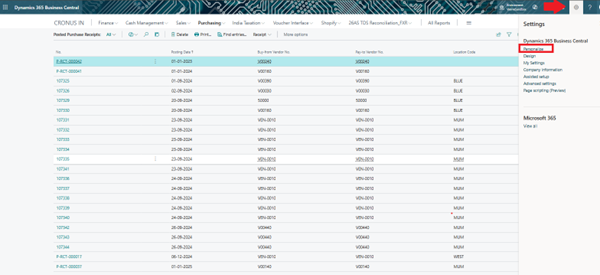
- In the top-right corner, select Settings and choose Personalize.
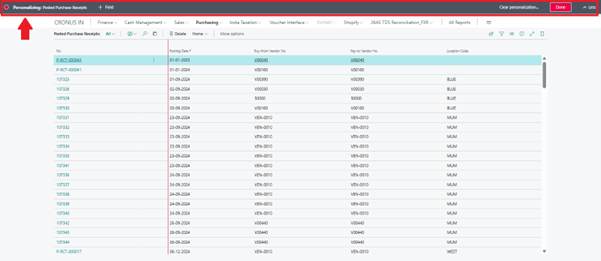
- The Personalizing banner appears at the top, showing you are in personalization mode.
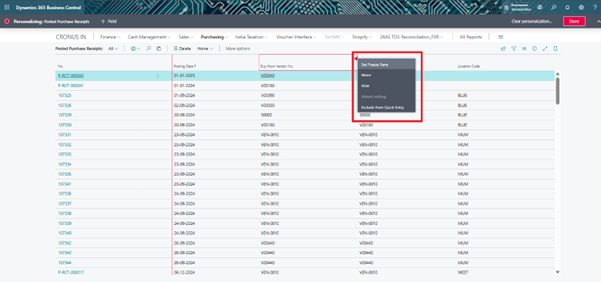
- Click on any element (field, column, part, or action) to move, hide, or show it.
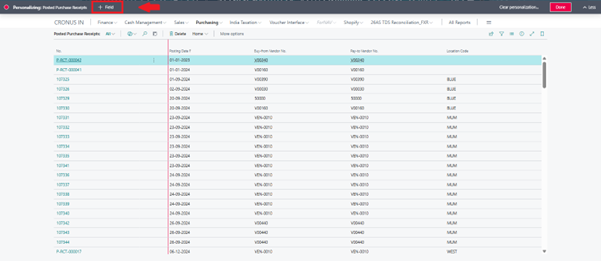
- To add new fields, select + Field and drag the desired field into place.
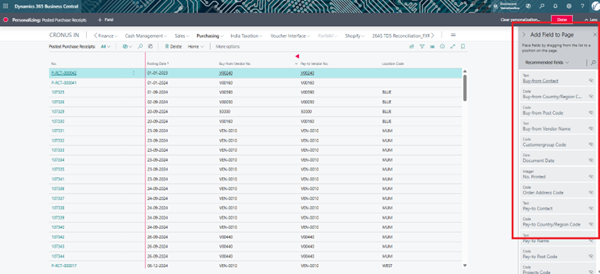
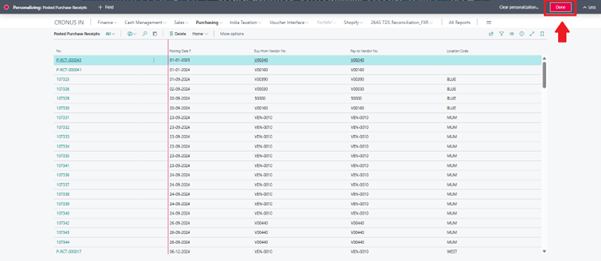
- When finished, select Done on the banner to save your changes.
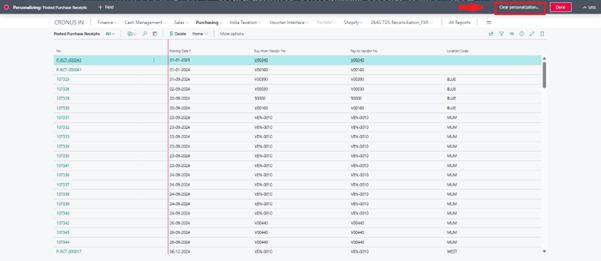
If you ever want to reset, you can Clear Personalization from the same menu.
Why Personalization Matters
Personalization is all about making Business Central work for you. Instead of adapting your workflow to fit the software, you adjust the software to support your workflow. The result is higher efficiency, fewer clicks, and a workspace that feels natural.
Best Practices and Conclusion
Personalization in Business Central gives you the power to adapt your workspace without depending on IT or administrators. But to truly benefit from it, it’s important to use it wisely.
When to Use Personalization
Use personalization when you need changes that:
- Apply only to your account.
- Can be done quickly without impacting other users.
- Improve day-to-day efficiency (like resizing columns, hiding unused fields, or creating views).
- Need to work immediately in production as well as sandbox environments.
Tips for Effective Personalization
- Keep It Simple – Only keep fields, actions, and parts you actually use. Too many elements make the page cluttered.
- Leverage Quick Entry – Skip irrelevant fields during data entry so you can work faster.
- Use Saved Views Wisely – Create views for tasks you repeat daily (like “Pending Invoices”) and name them clearly.
- Balance Consistency and Flexibility – Personalize to suit your workflow, but keep key fields visible to avoid missing important data.
- Roaming vs. Local Settings – Remember that roaming personalization follows you across devices, while local changes stay only in the browser you used.
- Know When to Reset – If things get messy, use the Clear Personalization option to restore the page to its default layout.
Why Personalization Matters
- Boosts Productivity – By keeping only what you need in sight, you work faster with fewer clicks.
- Supports Individual Preferences – Each user can adjust their pages differently, ensuring comfort and efficiency.
- Adapts to Your Role – Sales, finance, and operations users can each shape their workspace to highlight what’s most relevant to them.
Conclusion
Personalization isn’t just a nice-to-have it’s a tool to make Business Central work for you. By applying thoughtful adjustments, you create a workspace that feels natural, reduces friction, and supports your daily responsibilities.
In short: With personalization, you don’t just use Business Central you make it your own.