
While personalization is great for tailoring your own workspace, sometimes your organization needs deeper page modifications that affect everyone. This is where the Designer tool in Business Central comes in.
What Is Design Mode?
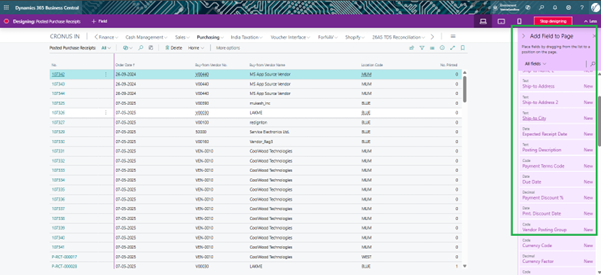
Design mode allows you to change the layout and structure of pages by dragging and dropping components such as fields, columns, parts, or actions. Unlike personalization, these changes are not limited to you they apply to all users.
Important: Design mode is only available in the sandbox environment. It’s meant for testing and development, not for direct use in production. Once you’re satisfied with your design changes, you can save them as an extension and later deploy them to production.
What You Can Do with Designer
The Designer tool provides a wide set of capabilities, including:
- Add Fields and Parts
Bring in hidden fields or new parts to a page for better data visibility. - Move or Remove Components
Rearrange fields, tiles, actions, and groups or remove those that add no value. - Change Captions and Field Importance
Edit the caption of Fast Tabs or set whether fields show always, only when collapsed, or under “Show More.” - Set Freeze Panes and Column Widths
Keep important columns visible while scrolling or resize them for clarity. - Work with Actions
Move actions into promoted categories, reorganize action groups, or hide actions that aren’t relevant to your processes. - Preview on Different Devices
Check how your design looks on desktop, tablet, or mobile to ensure a consistent experience across platforms.
How to Start and Stop Designing
- Go to the page you want to design.
- Select the Settings icon, then choose Design.
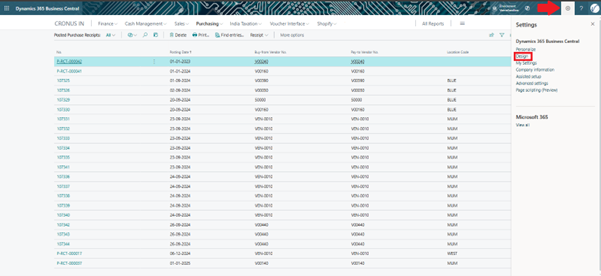
- The page opens in design mode, allowing drag-and-drop changes.
- Once done, select Stop Designing. You’ll be prompted to name your extension and save it.
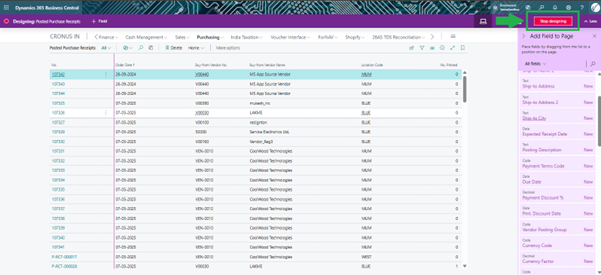
These changes are now applied in the sandbox environment and visible to all users there.
Best Practices for Using Designer
- Always test in Sandbox – Never make design changes directly in production.
- Download and Save Extensions – Design mode generates extensions. Always save them to avoid losing changes during sandbox refreshes.
- Limit Scope – Keep designs simple and focused on solving specific user needs. Over-customizing can make future upgrades harder.
- Balance with Personalization – Use design mode for structural changes that everyone needs, and personalization for individual preferences.
Why Use Designer?
Designer empowers administrators and developers to:
- Streamline pages for efficiency.
- Standardize layouts for teams.
- Deliver role-specific pages that guide users to the right data and actions.
It bridges the gap between personal user adjustments and system-wide customizations by giving you a safe space to experiment before rolling changes into production.
Best Practices and Conclusion (Design)
Designing pages in Business Central using the Designer tool goes beyond personalization. It allows administrators and developers to restructure pages in a way that benefits the entire organization. But since these changes affect all users, it’s important to approach design thoughtfully.
When to Use Design
Use design mode when you need to:
- Make structural changes that apply system-wide.
- Standardize layouts across teams (e.g., Finance vs. Sales).
- Add or remove fields, actions, or parts that everyone needs.
- Test new layouts in a sandbox environment before pushing them to production as extensions.
Tips for Effective Design
- Always Work in Sandbox – Design mode is only available in sandbox, and for good reason. Test and refine changes here before deploying to production.
- Save Extensions Regularly – Extensions generated by design can be lost when the sandbox is refreshed. Download and back them up.
- Keep Pages Clean and Focused – Avoid adding every possible field. Instead, prioritize the information that teams use most often.
- Use Device Previews – Test your designs across desktop, tablet, and mobile to ensure usability everywhere.
- Combine with Personalization – Use design for global structure, and leave room for users to fine-tune their own layouts with personalization.
- Document Changes – Record what was changed and why. This helps with upgrades, troubleshooting, and training.
Why Design Matters
- Boosts Consistency – Every user sees the same layout, reducing confusion.
- Supports Team Productivity – Departments get optimized pages tailored to their workflows.
- Encourages Scalability – Extensions created in sandbox can be deployed to production, ensuring changes are safe, tested, and repeatable.
Conclusion
Design mode is the bridge between personalization and full development. It gives organizations the flexibility to adapt Business Central pages for efficiency, standardization, and clarity without writing code.
When used wisely, design transforms Business Central into a smart, role-optimized system that guides users to the right data and actions.
In short: With design, you don’t just adapt Business Central you shape it for your entire organization.