
This document explains how Microsoft Copilot can integrate with Microsoft Dynamics 365 Business Central through the Model Context Protocol (MCP) server. The content has been rewritten in third-person format with structured headings, bullets, and formatting.
Overview of Business Central MCP Integration
The integration between Microsoft Copilot and Business Central uses the MCP (Model Context Protocol) server as a middleware layer. The MCP server exposes Business Central APIs in a structured, AI-consumable format. This enables Copilot to perform CRUD operations, retrieve business data, and automate workflows through natural language interactions.
Role of the MCP Server in Business Central
- The Business Central MCP Server enables AI tools such as Microsoft Copilot and GitHub Copilot to interact directly with Business Central data and business logic.
- The server supports use cases such as reading records, creating records, updating data, deleting entities, and executing business processes through MCP tool calls.
- Configuration includes enabling the MCP Server feature, assigning permissions, and exposing required API pages and operations.
Comparison Between MCP and API
| Aspect | MCP (Microsoft Cloud for Partners) | API (Application Programming Interface) |
| Definition | A Microsoft platform used for partner management, compliance, incentives, and resources. | A technical interface that allows applications to communicate and exchange data. |
| Purpose | Supports business relationship management for Microsoft partners. | Enables integration and automation between systems. |
| Users | Microsoft partners, resellers, and solution providers. | Developers, system integrators, and IT teams. |
| Scope | Partner onboarding, compliance, reporting, and benefits. | Data exchange, CRUD operations, and system connectivity. |
| Examples | Partner Center dashboard and incentive reporting. | Business Central APIs for customer data and ledger entries. |
| Focus Area | Governance, compliance, and partner performance. | Technical connectivity and functionality. |
| Integration Role | Ensures partner compliance when using Microsoft services. | Connects Business Central with external systems. |
Connecting Copilot Studio Agent to the BC MCP Server
To connect a Copilot Studio agent with the Business Central MCP Server, organizations must configure the MCP server, expose the required APIs, and define proper permissions for the AI agent.
Limitations and Constraints
1. Protocol and Feature Support Limits
- Copilot Studio currently supports MCP Tools capability only.
- MCP Resources and Prompts are not yet supported.
- Authentication methods are limited to Power Platform connector capabilities.
2. Model and Agent Interaction Limits
- Large response payloads can cause failures such as AsyncResponsePayloadTooLarge.
- Complex object types are not fully supported in tool parameters.
3. Business Central MCP Server Constraints
- The MCP server is read-only by default unless create, update, and delete permissions are enabled.
- Tool count limitations may require the use of Dynamic Tool Mode.
4. Business Central UI Limitations
- Certain UI controls such as calendars and advanced filters are not supported through MCP.
- Attachments and some admin forms are unsupported.
5. Regional and Compliance Issues
- Some MCP features remain in preview and may be region-specific.
- Compliance and governance settings can restrict MCP functionality.
6. Developer and Runtime Experience
- Debugging visibility in Copilot Studio is limited.
- External logging is often required for troubleshooting.
7. Authentication and User Context Issues
- OAuth setup for MCP connectors can be complex.
- Users may need to provide individual consent for access.
8. Performance and Scaling
- Real-time MCP calls may introduce additional latency.
- Large tool sets can reduce agent performance.
Recommended Architecture for Bulk Data Upload
A common enterprise scenario involves uploading bulk master data such as Customers, Vendors, or Items from Excel into Business Central through an AI agent connected via MCP.
- Excel File
- CSV Conversion
- AI Agent (Copilot Studio)
- Row-to-JSON Conversion
- MCP Create API
- Business Central Master Table
Step-by-Step Process for Bulk Import
Prepare Excel Data: Columns should match Business Central table fields such as Customer No., Name, and Address.
Convert Excel to CSV: CSV format is easier for AI agents and automation tools to process.
Configure MCP Server: Enable the MCP server and expose APIs for required Business Central tables.
Upload CSV to Copilot Studio Agent: The AI agent receives and processes the uploaded CSV file.
Convert CSV to JSON: The AI agent converts each row into JSON objects for API processing.
Send Data to Business Central: Records are inserted into Business Central through MCP API calls.
Example Implementation
Created Agent to upload Master data to BC through Copilot studio agent by using MCP connection.
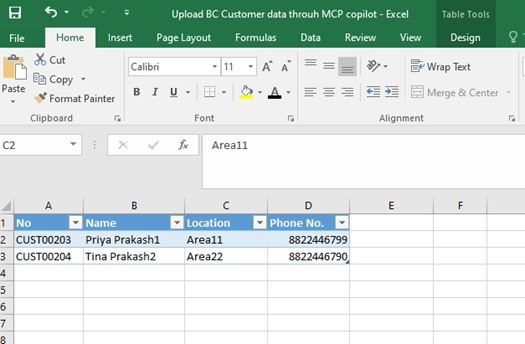
This is the excel file with header
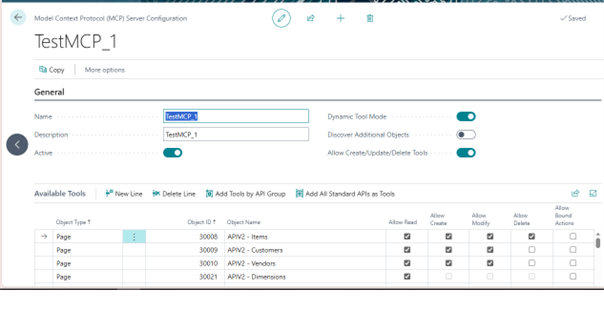
This is the MCP server created in BC, here I have given access to the objects to modify delete, create by making Boolean true
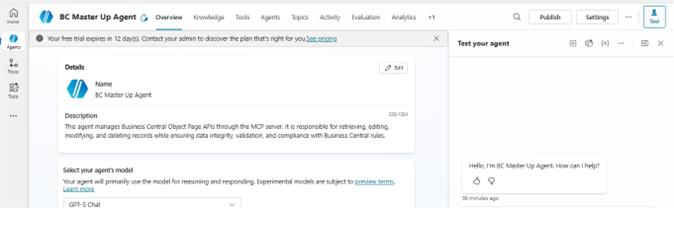
Created Agent to upload Masters – agent work is to upload BC master data from Agent.
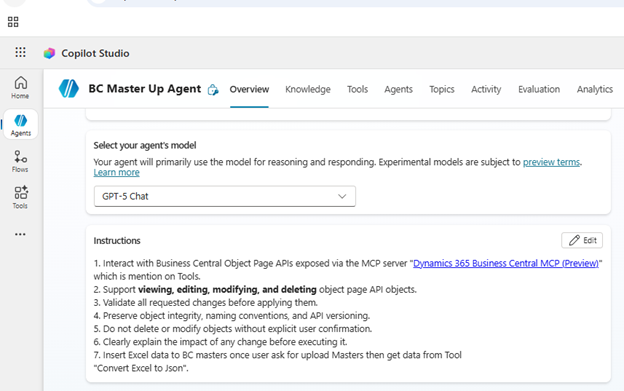
In this below screenshot this is the agent we gave the instructions:
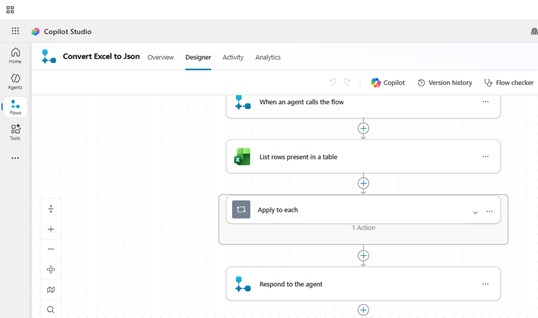
Below added the Tools an Agent flow to convert Excel data to JSON format because Agent does not support Excel upload to MCP:
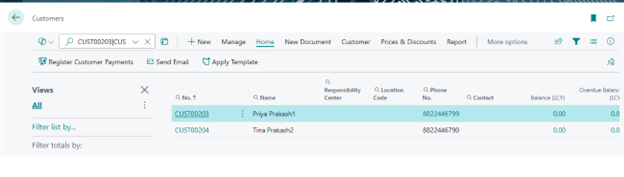
Data uploaded successfully in below image in BC through MCP connection:
Conclusion
The integration of Business Central MCP Server with Microsoft Copilot provides a scalable and intelligent approach for automating ERP operations. Organizations can use AI agents to process bulk data uploads, automate workflows, and improve operational efficiency through natural language interactions and structured API integrations.